Coming soon · network planning and training in your browser
Build the network on screen before you build it on site.
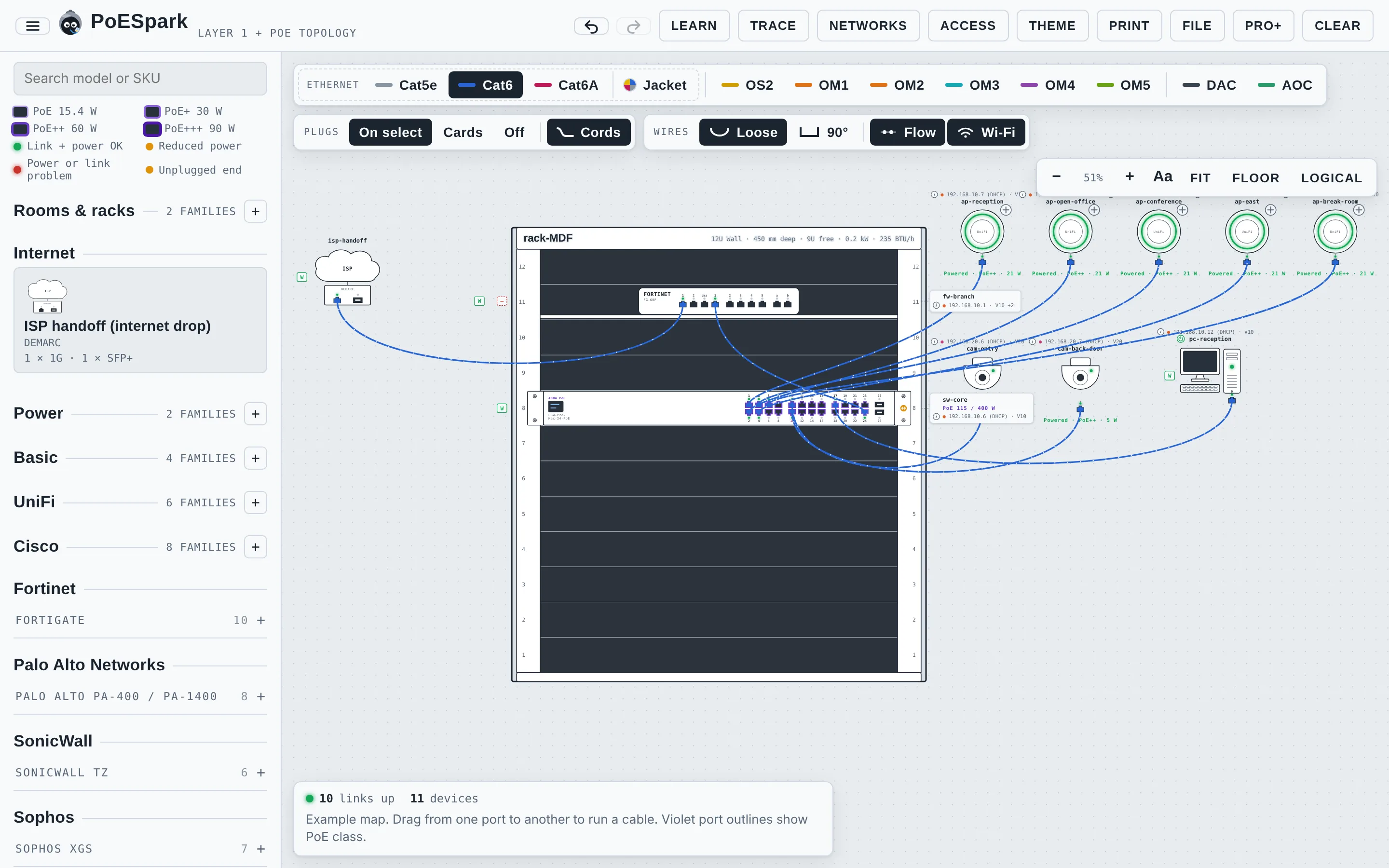
PoESpark is a tool for designing small-site networks and learning how they work. Rack the gear, cable real ports, check PoE and power, set up VLANs and firewall rules, plan Wi-Fi on the floor plan, then trace a packet from one end to the other.
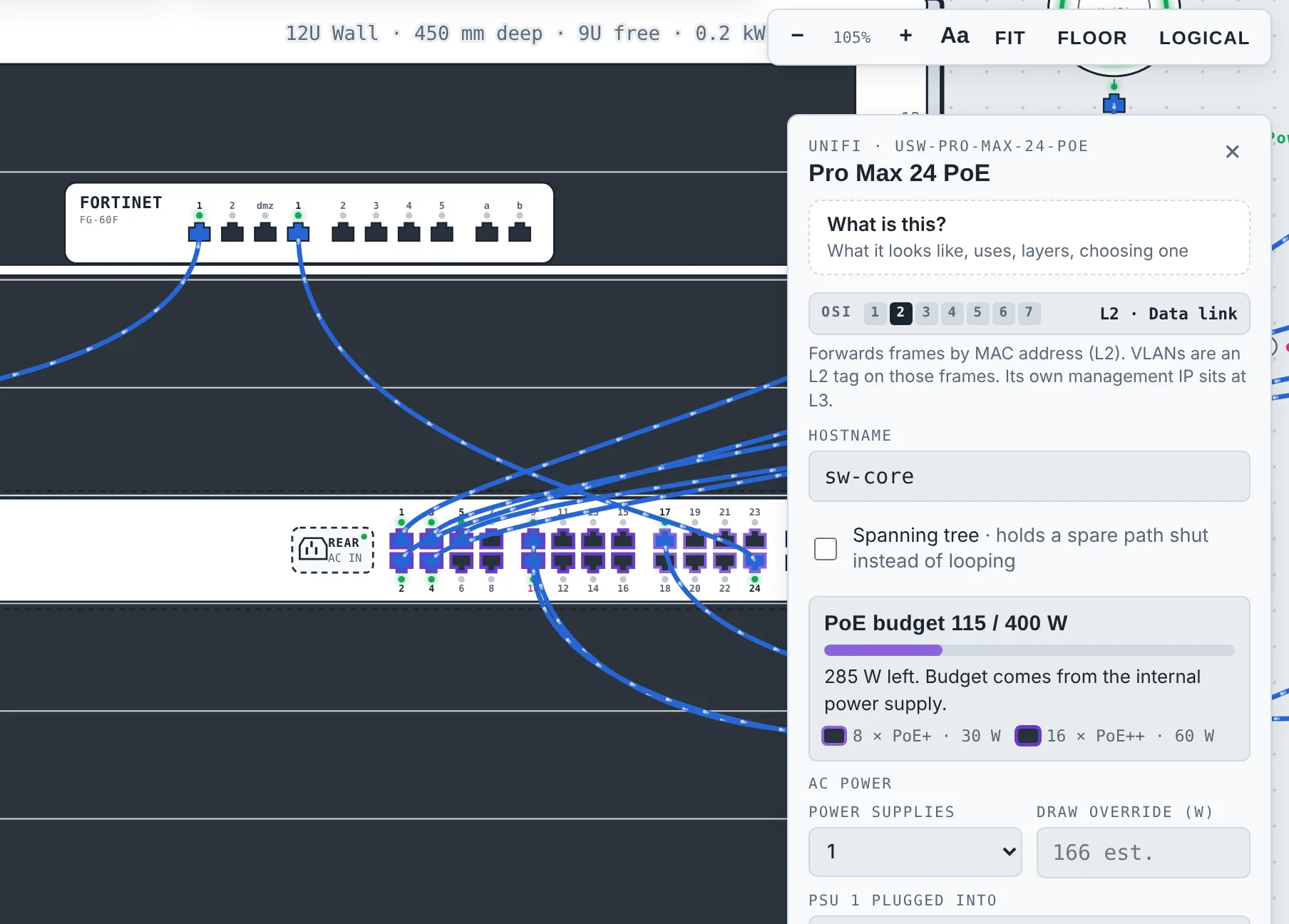
Pick switches, firewalls, access points and cameras from the catalog, mount them in a rack and cable them port to port. PoE budgets and power draw add up as you go, so you find the overloaded switch now and not on install day.
UniFi, Cisco, Fortinet, Palo Alto, SonicWall and more, plus an unbranded Basic set
PoE class on every port and a running budget on every switch
UPS and PDU loads, patch panels, copper and fiber types
A materials list that keeps itself up to date
Trace
Follow a packet, and see exactly where it stops.
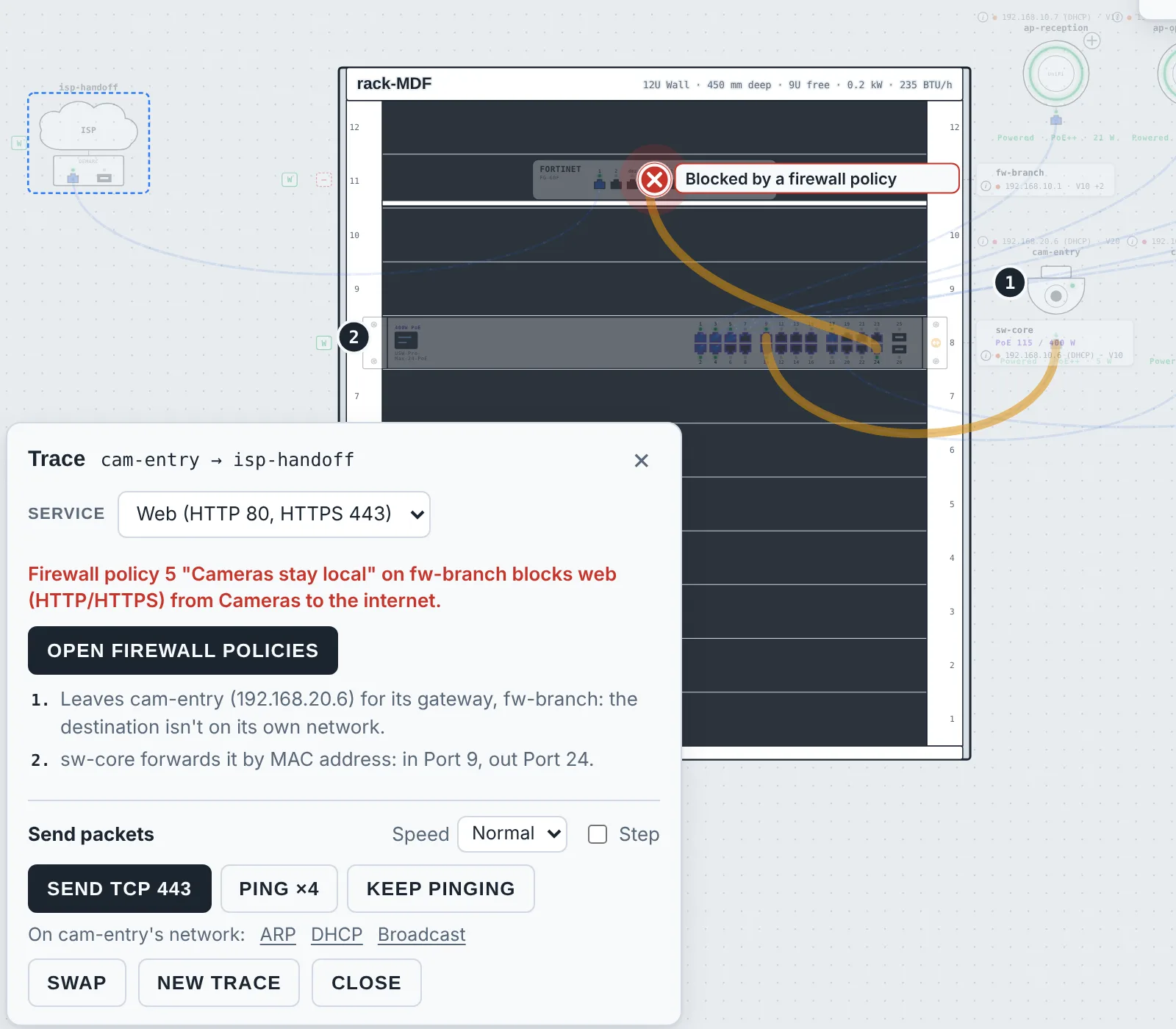
Pick any two devices, or send one out to the internet. A dot travels the real cables hop by hop and each step is explained in plain words. When it fails, it stops on the spot and says why, down to the firewall policy that blocked it.
Ping, TCP, UDP, ARP, DHCP and broadcast
Networks, VLANs, trunks and DHCP scopes
Firewall policies, with the rule that allowed or blocked it named
Switching loops found and explained, with spanning tree and link aggregation to manage spare links
A VPN between two sites, and a backup internet line that takes over when the main one fails
Everyday faults to find and fix: a cable with a bad pair, a router from home handing out addresses
Floor plan
Plan the building, not only the rack.
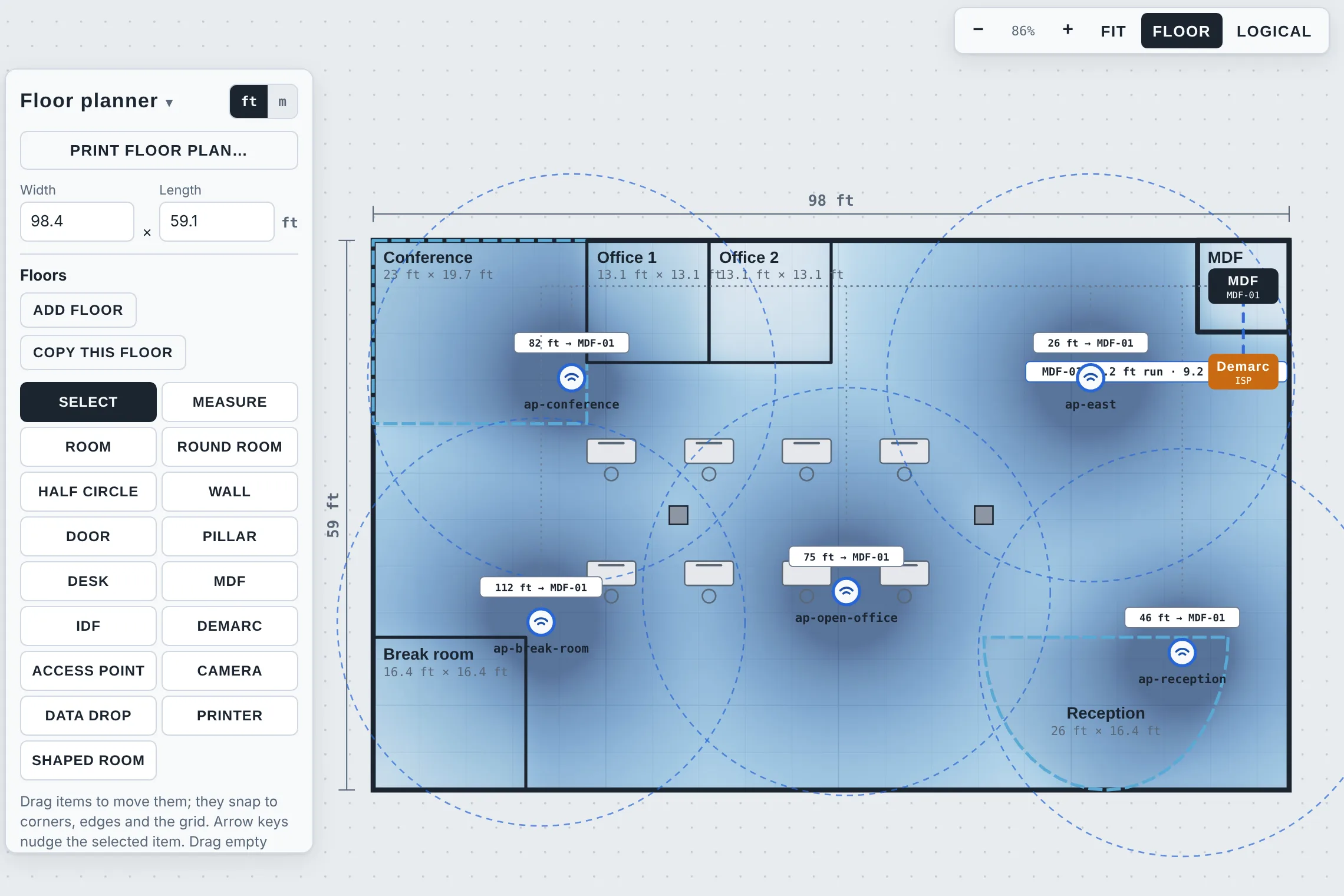
Trace over a real floor plan or draw the rooms to scale, mark the MDF, IDFs and demarc, then place access points and see the coverage through glass, drywall, brick and concrete. Every cable run is measured back to its closet.
Wi-Fi heatmap and a coverage score, on 2.4, 5 or 6 GHz
Channel planning: channel width, which neighbours would share, and other people's Wi-Fi next door
A capacity check: how many devices each access point would carry
Cameras, data drops, printers and doors
Runs checked against the 90 m limit
Several floors in one building
Learn
100 short lessons, from "what is a switch" to handing over a site.
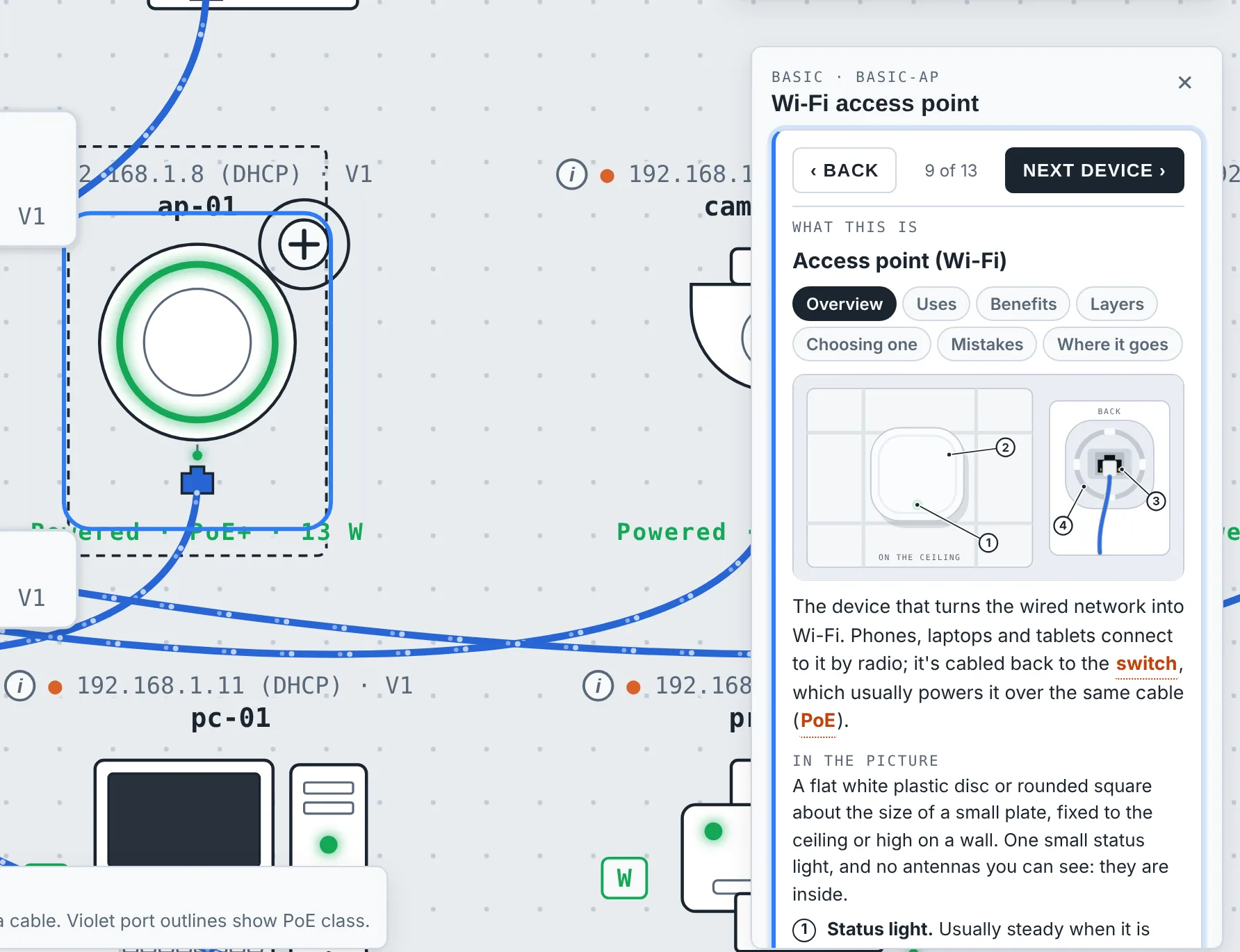
Each lesson gives you a real map and a goal. A guided tour introduces every device, technical words open a plain-language definition, and questions check that it stuck. Start from zero, or test out of the basics.
Start here: 14 lessons for first-timers
Levels 1 to 6: power, VLANs, DHCP, Wi-Fi, firewalls, VPN, door access, deploying a site
Spark tickets: press New ticket and something breaks on a lab network. A made-up person writes in, you find the fault and close the ticket
Fault-finding lessons, capstone exercises and a test-out for each level
A 120-word glossary and a guide to every kind of device, with a drawing of what it looks like in real life
A picture guide to cables and connectors: Ethernet categories, fiber types, plugs and modules
A picture guide to the installer's tools: punching down a jack, crimping a plug, reading a cable tester, running cable
A subnet teacher: see the bits split, practice without end, and plan a site's networks step by step
Six one-page cheat sheets to print: cabling, addresses, ports, fault-finding, Wi-Fi, power
Checklists for real jobs: before install day, install day, handover and monthly care
Review rounds that check what has stuck, and a progress record you can print
Hand over
Walk away with drawings, a parts list and configs.
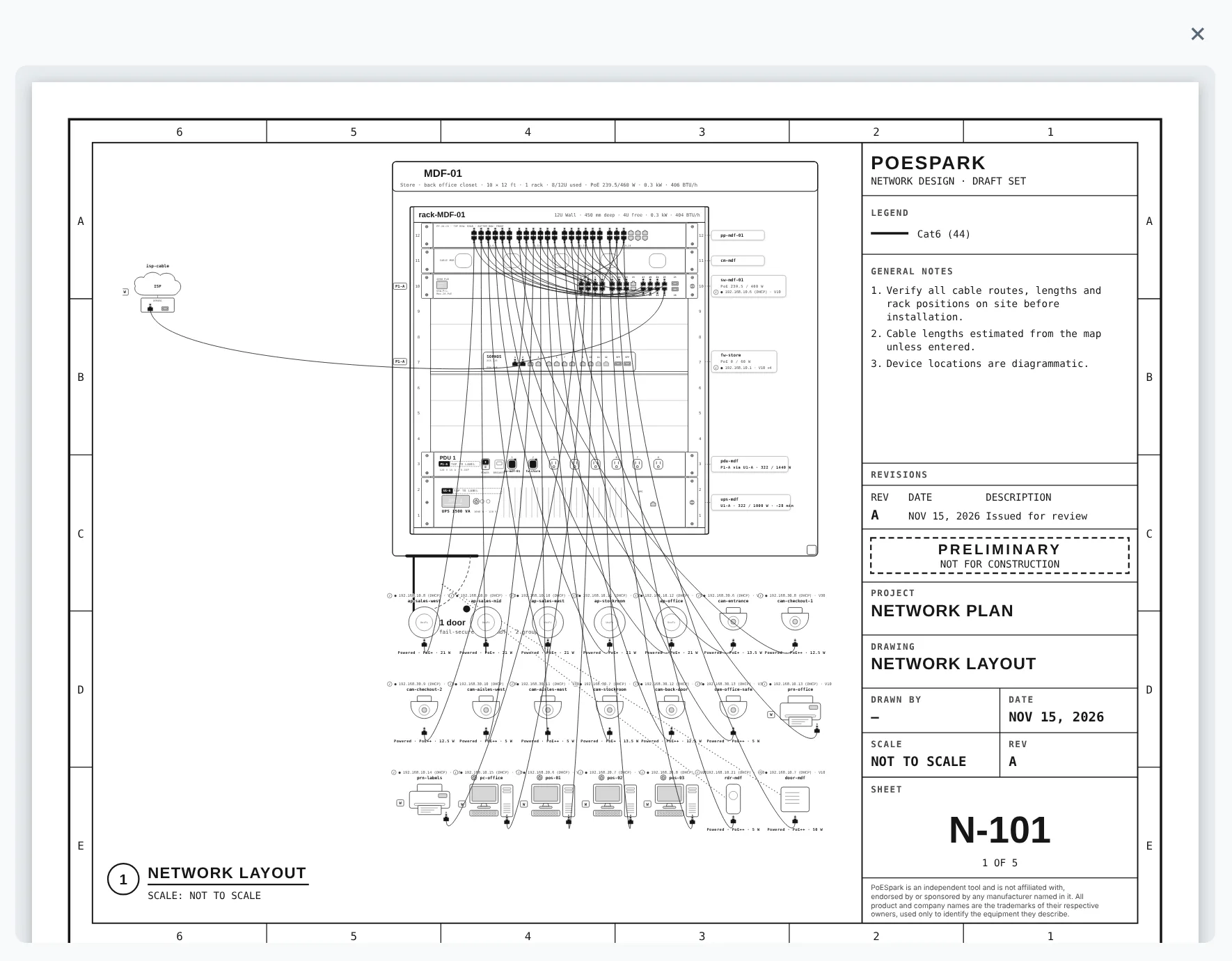
Print a plan set with a title block: the network layout, the floor plan, rack elevations and a device schedule. Export the materials list, and get starting configs written from the policies you drew.
Letter, tabloid, A4 and A3 sheets
Materials list as CSV
Configs for FortiOS, PAN-OS, Cisco ASA and Junos
Save, export and open map files
Meet Poe
Poe levels up with you.
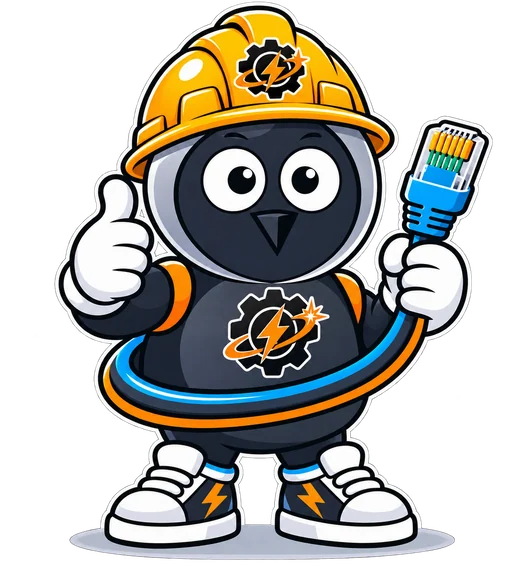
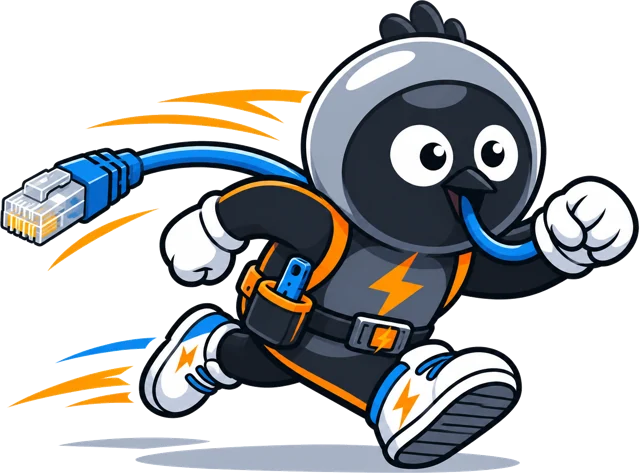
Poe carries a patch cord everywhere and has a spark for PoE. He changes hats as you move through the levels: hard-hat technician for cabling, goggles for networks, a shield for security, a cap and gown when you finish.
Who it's for
New to networking
Start with the guided tour, then build a first working network one step at a time. There is no kit to buy.
IT admins and installers
Plan a site before the quote: ports, PoE, power, addresses and cable runs, checked before anything is ordered.
Trainers and teams
Give everyone the same lab. Lessons, questions, printable checklists and cheat sheets keep deployments consistent, and each learner can print a record of what they have done.
PoESpark opens soon.
Questions, or want to hear the day it opens? Email us.
PoESpark is an independent tool and is not affiliated with, endorsed by or sponsored by any manufacturer named in it. All product and company names are the trademarks of their respective owners, used only to identify the equipment they describe.